

Designing a digital planner from scratch is often a lesson in patience. Aligning dozens of tiny calendar boxes, drawing consistent weekly grids, and mapping out matching daily schedules page-by-page takes hours of repetitive work before you even begin styling. Relying on the digital planner templates Canva offers bypasses this tedious setup phase entirely, allowing you to focus on the elements that actually make a planner sell: functional layouts, elegant typography, and highly targeted tracking pages.
Using digital planner templates Canva to speed up design and production
Building a catalog of passive income digital products does not require a background in software development or advanced graphic design. Instead of creating every single line and border yourself, you can source high‑quality digital planner commercial use templates. These pre‑made assets act as a licensed foundation that you can legally modify, brand, and sell as your own unique product, saving you weeks of initial drafting.
How to Design a Digital Planner for a Specific Audience
A common mistake when learning how to design a digital planner is trying to create a generic product that appeals to everyone. Saturated marketplaces are filled with standard daily planners. Your designs will gain far more traction if you build them with a specific profession, lifestyle, or goal in mind.
Consider the approach of a creator who wanted to begin selling digital planners on Etsy but felt overwhelmed by the thought of designing hundreds of unique pages. By starting with a solid commercial‑use template, applying a warm, cohesive earthy color palette, and adding dedicated project‑tracking sheets specifically for freelance writers, she simplified her marketing and secured her first three sales within ten days of launching her shop.
Creating Interactive Navigation in Canva
A professional digital planner relies on interactive tabs to help users jump between months and sections instantly. While it sounds complex, this Canva hyperlinked planner tutorial step is actually straightforward. Select the shape or text box serving as your tab, click the link icon in the top toolbar, and choose the corresponding page within your document. Applying these links systematically across your master pages before duplicating them saves immense troubleshooting time later.
Identifying Best‑Selling Digital Planner Themes
Success on marketplace platforms depends heavily on targeting existing search demand. Choosing popular digital planning templates to sell ensures you are creating products people are already looking for. Some of the best selling digital planner themes consistently address specific, high‑intent user needs:
| Theme | Target Audience | Essential Tracker Pages | Seasonal Demand Pattern |
|---|---|---|---|
| Budget & Personal Finance | Young professionals, couples | Debt payoff charts, monthly bill trackers, expense logs | Consistent year‑round demand |
| Academic & Lesson Planning | Students, teachers, homeschoolers | Class schedules, assignment lists, grade trackers | Peaks mid‑summer to early autumn |
| Wellness, Fitness & Habits | Health‑conscious buyers, gym beginners | Meal planning grids, daily habit loops, workout logs | Strongest in late December and Q1 |
| Business, Project & Career | Entrepreneurs, freelancers | Project timelines, client logs, daily priority matrices | Steady, professional‑grade demand |
How to Export Canva PDF for GoodNotes
In practice, digital planner templates Canva becomes clearer when you compare the options against the goal in front of you. Once your layout is polished and your navigation links are in place, the final step is exporting a file that works seamlessly on tablet apps like GoodNotes or Notability. Knowing how to export Canva PDF for GoodNotes without breaking your hard work is crucial.
Click the “Share” button in the top right corner of Canva, select “Download”, and set the file type to “PDF Print”. Crucially, leave the “Flatten PDF” option unchecked. Flattening merges all layers into a single image, which permanently disables your interactive hyperlinks. Once downloaded, transfer the file to your tablet and test every link manually before listing it for sale.
Real‑World Testing and Optimization Tips
- Test a quick prototype: Before spending hours hyperlinking a massive, 100‑page planner, build a brief two‑page draft. Export it, load it onto your tablet, and test the links. This quick trial ensures your sizing, alignment, and navigation work exactly as intended before you commit to a complex project.
- Analyze customer pain points: Study existing listings in your chosen niche on Etsy. Read the reviews on popular planners to see what customers love and, more importantly, what they complain about. If users mention that a competitor’s text is too small or that they miss having a dedicated weekly review page, incorporate those missing elements into your own designs.
Preparing Your Storefront for Launch
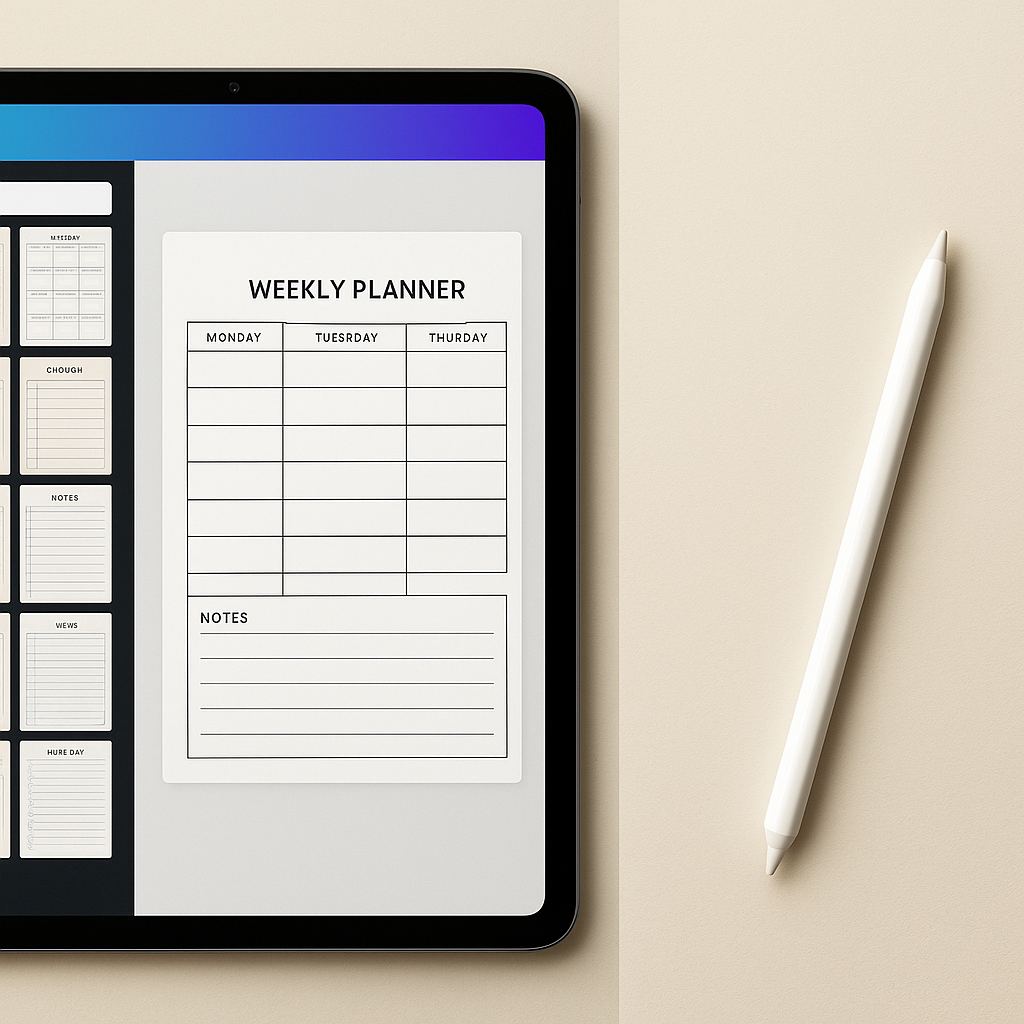
With a finalized PDF, your attention should shift to presentation. Buyers cannot touch a digital product, so visual clarity is your primary sales tool. Create clean mockup images displaying your planner pages inside an iPad frame. Write direct product descriptions that explicitly outline what is included, which apps are compatible, and simple instructions for importing the PDF. Start with a focused product line, collect feedback from your first customers, and use those insights to refine your next design.
Practical Questions Before You Start
Can I sell digital planners made with standard Canva templates?
You cannot resell Canva’s native templates directly. You must customize them significantly, or purchase commercial use templates that permit resale of the final flattened PDF product.
Do hyperlinks created in Canva work in GoodNotes?
Yes, when you export your document from Canva as a PDF Print file without flattening it, all internal and external links will remain fully interactive in GoodNotes.
Where is the best place to sell my customized digital planners?
Etsy is the most popular marketplace for digital planners due to its massive built‑in audience, though you can also sell them on your own website using platforms like Shopify or Gumroad.
Before making a decision about digital planner templates Canva, use these points to weigh the trade-offs in your own situation. Open Canva, choose a high‑quality commercial‑use layout, and begin customizing your first functional planner today.







Discussion