

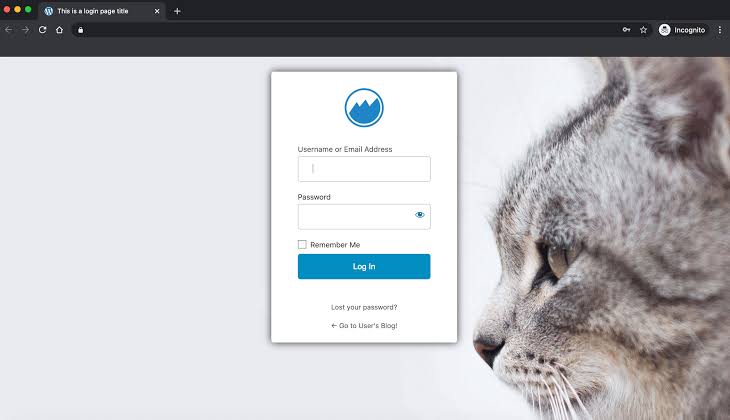
Setting up a secure WordPress login is one of the most important steps you can take to protect your website from unauthorized access. Every day, automated bots scan the web looking for the standard entry points of WordPress installations. If you leave your gateway open, you risk facing unauthorized entry, defaced pages, or malicious code injection. However, locking down your site shouldn’t mean making it impossible for your real users, clients, or team members to log in.
Why the WordPress login page is a prime target for attacks
By default, every WordPress site shares the same entry path: /wp-login.php or /wp-admin/. Because this structure is universal, malicious actors use automated scripts to test thousands of common password combinations against these pages. This method is known as a brute force attack. Implementing strong WordPress brute force attack protection is essential because these automated requests can drain your hosting resources, slow down your pages, and eventually guess weak passwords.
Having dealt directly with compromised files and DNS security warnings on clean-up projects, I can tell you that preventing an attack at the login gate is far easier than cleaning up infected files and requesting security-provider delisting later.
The challenge lies in balancing security with user experience. If your security rules are too aggressive, legitimate users who make a simple typo might find themselves temporarily locked out, leading to frustrated clients and unnecessary support tickets.
Best practices for protecting your WordPress login page without harming usability
Securing your admin portal does not require an overly complex setup. By following standard protection methods, you can establish a strong defense while keeping the entry process smooth for your team.
Limit login attempts to block automated attacks
Out of the box, WordPress allows users to try entering their password an infinite number of times. To fix this vulnerability, you should configure login attempt limits in WordPress. By restricting login attempts to three or five tries, you instantly stop automated scripts. When a legitimate user exceeds this limit, they are temporarily locked out for a short period, such as 15 minutes, rather than permanently banned. This approach deters bots while remaining forgiving to human error.
Add two-factor authentication for stronger security
Instead of forcing users to remember 30-character passwords that they inevitably write down on sticky notes, a WordPress two-factor authentication setup offers a better alternative. Users enter their standard password and then confirm their identity via a mobile authenticator app, an email code, or a temporary link. This adds an incredibly high level of security because even if an attacker guesses the password, they cannot gain access without the physical device.
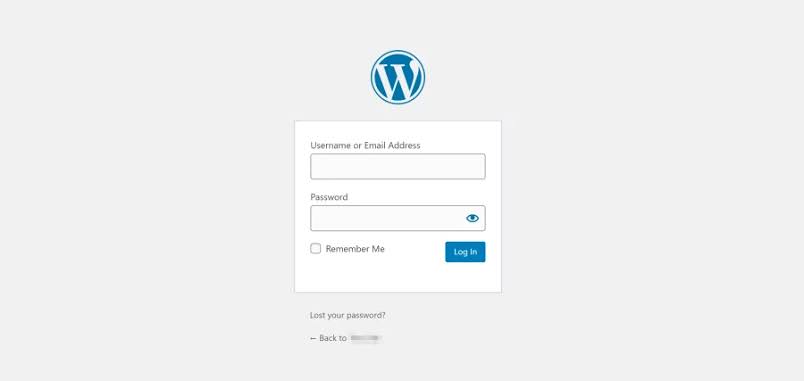
Change your login URL to hide the entry point
Another practical step is to change your WordPress login URL. Moving this access point from /wp-login.php to a unique path like /portal-access or /member-entry keeps bots guessing. If the bots cannot find your login form, they cannot attack it. However, you must communicate this change clearly to your users and remind them to bookmark the new link so they do not get confused.
Advanced techniques for a secure WordPress login without plugins
If you prefer to keep your site lightweight, you can configure a secure WordPress login without plugins by working directly with your server configuration files. This method is highly effective for single-admin sites but requires a bit of technical comfort.
| Method | How it works | Impact on user experience |
|---|---|---|
| IP whitelisting | Restricts login page access to specific IP addresses via .htaccess or Nginx rules. | Excellent for single-user sites with static IPs, but locks out remote users with dynamic IPs. |
| Server-level basic authentication | Adds a second username and password prompt before the WordPress login page even loads. | Highly secure, but requires users to enter two sets of credentials. |
| Cloudflare Page Rules | Blocks known malicious IPs or forces a challenge page before displaying the login form. | Completely seamless for humans, highly restrictive for automated bots. |
For small business owners and busy teams, managing .htaccess files can feel intimidating. If you are running multiple customer-facing websites, using a well-maintained security plugin or managed hosting security features is often the more reliable, long-term choice.
Balancing security and usability on your WordPress login page
Protecting your WordPress login page doesn’t have to feel like an obstacle course. By combining a hidden login URL with login attempt limits and two-factor authentication, you protect your digital assets while ensuring your genuine visitors and team members enjoy a smooth experience. Start with one or two changes today, monitor how your users adapt, and build a safer web presence step by step.
Remember, the goal is not to create a fortress that frustrates your users but to build a smart defense that adapts to their needs. With these strategies, you can keep your WordPress site secure without sacrificing usability.
Frequently Asked Questions
Does changing the WordPress login URL break my website?
No, changing the URL using a reputable security plugin does not break your site. However, you must remember or bookmark the new address, as the old wp-admin path will no longer function.
Can I secure my login page without installing more plugins?
Yes, you can use server-level solutions such as basic HTTP authentication, IP whitelisting in your .htaccess file, or network-level protection rules via services like Cloudflare.
What happens if a real user gets locked out by security limits?
Most login-limiting tools allow administrators to set temporary lockouts (such as 15 to 30 minutes) rather than permanent bans, giving real users a chance to try again or request a password reset.
Want to ensure your hosting environment is secure by default? Explore our high-performance managed plans at JukosoHost to keep your site safe, fast, and fully optimized.





Discussion